

Best Productivity Mice for WFH (From RM150 to RM600)
Working from home means your mouse isn’t just a pointer anymore, it’s something you use for 6 to 10 hours a day, every day. Yet many WFH setups in Malaysia still rely on basic RM50–RM100 mice that were never designed for long hours of clicking, scrolling, and precision work. The result is usually subtle at first: tired fingers, sore wrists, missed clicks, and slower workflows. Over time, it adds up.
In this guide, we look at the best ergonomic and productivity mice for WFH in the RM150 to RM600 range the price bracket where comfort, performance, and long-term value finally start to make sense. This is the range where you stop buying “just a mouse” and start buying a tool that supports how you actually work.
If you’re coming from a budget option like those in our Ranked Budget Mouse list, this article shows you exactly what you gain when you upgrade. And if you’re building a full workstation around our Ultimate WFH Desk Setup, this is where the mouse becomes one of the most important pieces of the puzzle.
Instead of picking random models, we’ll walk through a real WFH upgrade path from a comfortable entry-level mouse, to a true productivity workhorse, all the way to a lightweight pro-grade option. Whether you’re on Excel all day, coding for hours, designing, or just want a mouse that doesn’t make your hand feel tired by lunch, this guide will help you find the right fit.
Why WFH Users Outgrow Budget Mice
A cheap mouse feels fine when you only use it occasionally, but WFH is different. When you spend 6 to 10 hours a day clicking, scrolling, and moving the cursor, small design flaws start to matter. Most budget mice are small, flat, and generic, forcing your hand into awkward angles that lead to wrist strain, finger fatigue, and discomfort over time. That’s why many WFH users eventually start searching for an ergonomic mouse or a mouse for wrist pain.
Click feel and scrolling also become more important. Low-cost mice usually have stiff, noisy buttons and rough scroll wheels, which not only break concentration during online meetings but also require more effort from your fingers. A basic sensor can make the cursor feel inconsistent, causing constant micro-adjustments that add to fatigue during long work sessions.
WFH users outgrow budget mice because their workload increases while their tools stay the same. Once you’re working full-time at a desk, a mouse isn’t just an accessory anymore — it’s a tool you rely on all day. That’s why moving into the RM150–RM600 range is often the first real upgrade that improves comfort, accuracy, and productivity.
TL;DR — Best Mouse for Working From Home (2026)
What is the best mouse for WFH? The Logitech MX Master 3S is the best all-around mouse for working from home because it combines ergonomic comfort, fast scrolling, multi-device support, and all-day battery life.
Best quiet office mouse: Logitech M650 — silent clicks, comfortable shape, and affordable upgrade from cheap RM50–RM100 mice.
Best productivity mouse: MX Master 3S — MagSpeed scroll wheel, side wheel, customizable buttons, and ergonomic shape for long workdays.
Best lightweight precision mouse: Logitech Pro X Superlight 2 — ultra-light with extremely accurate tracking, ideal for designers, developers, and anyone who hates heavy mice.
Ergonomic vs lightweight — which is better? Ergonomic mice (like MX Master 3S) reduce wrist strain for long static work, while lightweight mice (like Superlight 2) reduce arm and hand fatigue for fast, high-precision workflows.
Best upgrade path for WFH users: Start with M650, move to MX Master 3S for productivity, and switch to Superlight 2 if you need speed and precision.
How We Chose These Mice
These mice weren’t picked because they look good on a spec sheet — they were chosen based on how they actually perform in a real work-from-home setup. When you use a mouse for most of the day, small differences in comfort, control, and workflow make a much bigger impact than raw DPI numbers or gaming features.
The first priority was long-session comfort. We looked at shape, grip, weight, and button feel to see how relaxed your hand stays after hours of use. This is where ergonomics and balance matter more than anything else, especially for people who work full-time at a desk.
Next was productivity and workflow. That includes scroll wheels that move smoothly through long documents, buttons that are easy to reach, and features that reduce unnecessary movements when switching between tabs, apps, or devices. A good WFH mouse should help you work faster without you even thinking about it.
We also evaluated tracking and precision. Whether you’re editing documents, coding, or doing design work, the cursor should feel smooth and predictable. Inconsistent sensors force tiny corrections that add to hand and wrist fatigue over long sessions.
Wireless stability and battery life were also part of the criteria. In a home office, a mouse should simply stay connected and last for weeks without becoming something you have to manage.
Finally, all three picks had to make sense in a Malaysian price range from RM150 to RM600 and fit naturally into common WFH setups that mix desktops, laptops, and tablets. The goal was not to find the “best mouse in the world,” but the best upgrade path for people who work from home.
Pricing & affiliate disclosure:
Prices listed in this guide were checked on 13/01/2026 and may change over time. Some product links are affiliate links, which means this site may earn a small commission at no extra cost to you. All product selections are based on practical use cases and value, not sponsorship.
Tier 1: Logitech M650 — The Comfortable Office Upgrade
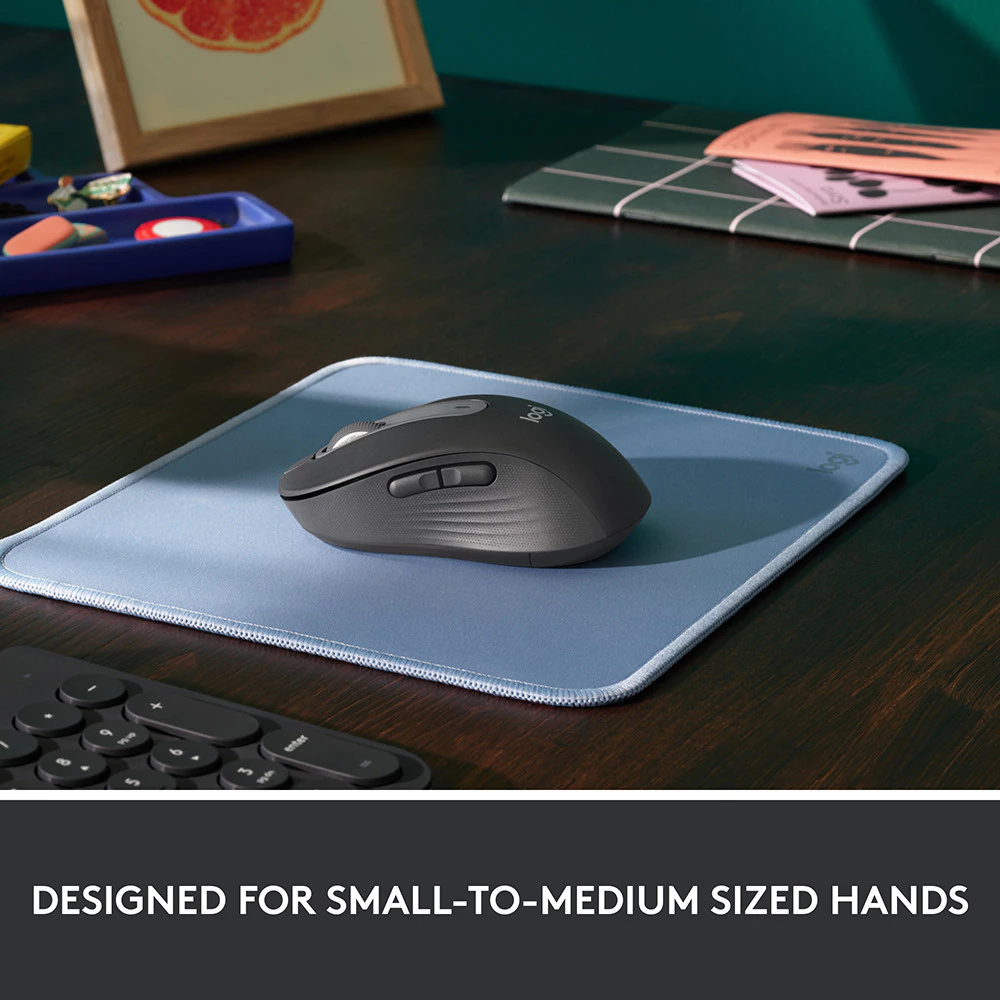
Logitech Signature M650
An ergonomic mouse available in two sizes (M650/M650 L) featuring dual Logi Bolt/Bluetooth connectivity, Silent Touch technology, and the SmartWheel for precision or speed scrolling.
RM159.00 · Shopee Malaysia
The Logitech M650 is where most WFH users should start when upgrading from a basic mouse. It sits just above the RM100 range, but the difference in day-to-day comfort and usability is much bigger than the price gap suggests. This is not a “fancy” mouse, it’s a proper office tool designed for people who spend hours clicking, scrolling, and moving between windows.
Why it’s better than RM50–RM100 mice
Most budget mice are built to be cheap and universal. They tend to be flat, narrow, and stiff, forcing your hand into an awkward grip that leads to fatigue over time. The M650 is shaped to support your palm and fingers more naturally, which immediately reduces tension in your hand. The buttons also require less force to press, so you’re not constantly straining your fingers during long workdays.
The sensor is another big upgrade. Cursor movement feels smoother and more consistent, especially on common desk surfaces. This may sound minor, but it means less correcting and less micro-strain when you’re navigating documents, spreadsheets, or web pages.
Silent clicks for meetings
One of the M650’s standout features is its silent click mechanism. In a home office or during video calls, loud mouse clicks can be distracting or even embarrassing. The M650 keeps the tactile feel of a proper click but removes the sharp noise, making it ideal for shared spaces, late-night work, or long Zoom and Teams meetings.
Shape & comfort
The M650 is designed as an ergonomic office mouse, not a gaming mouse. Its slightly contoured shape helps keep your wrist in a more neutral position, and the sides are shaped so your thumb and fingers can rest without squeezing. This makes it especially comfortable for laptop users who often work on smaller desks or without a full keyboard-and-mouse setup.
It’s not bulky, but it feels solid and stable in the hand, a big step up from the lightweight, hollow feel of cheaper mice.
Battery & portability
The M650 runs on a single AA battery, but thanks to Logitech’s efficiency, that battery can last months of daily use. There’s no cable to worry about, and no need to remember to charge it every few days. For WFH users who move between a laptop, a café, or different rooms at home, this makes the M650 a very low-maintenance companion.
Best for
The Logitech M650 is ideal for WFH users, laptop users, and anyone working in a quiet office. If you write, browse, handle emails, attend meetings, or do general office work, it delivers a huge upgrade in comfort and noise reduction over basic mice.
Not ideal for
It’s not built for heavy Excel work, design, or precision tasks. The scroll wheel is standard, and it doesn’t have the advanced controls or ultra-light feel that power users may want. If your job involves large spreadsheets, timelines, or detailed cursor work, you’ll eventually want to move up to the next tier.
Official Product Link
View full specifications on Logitech’s official website →
Video Review by Cameron Dougherty Tech
Tier 2: MX Master 3S — The Productivity Powerhouse
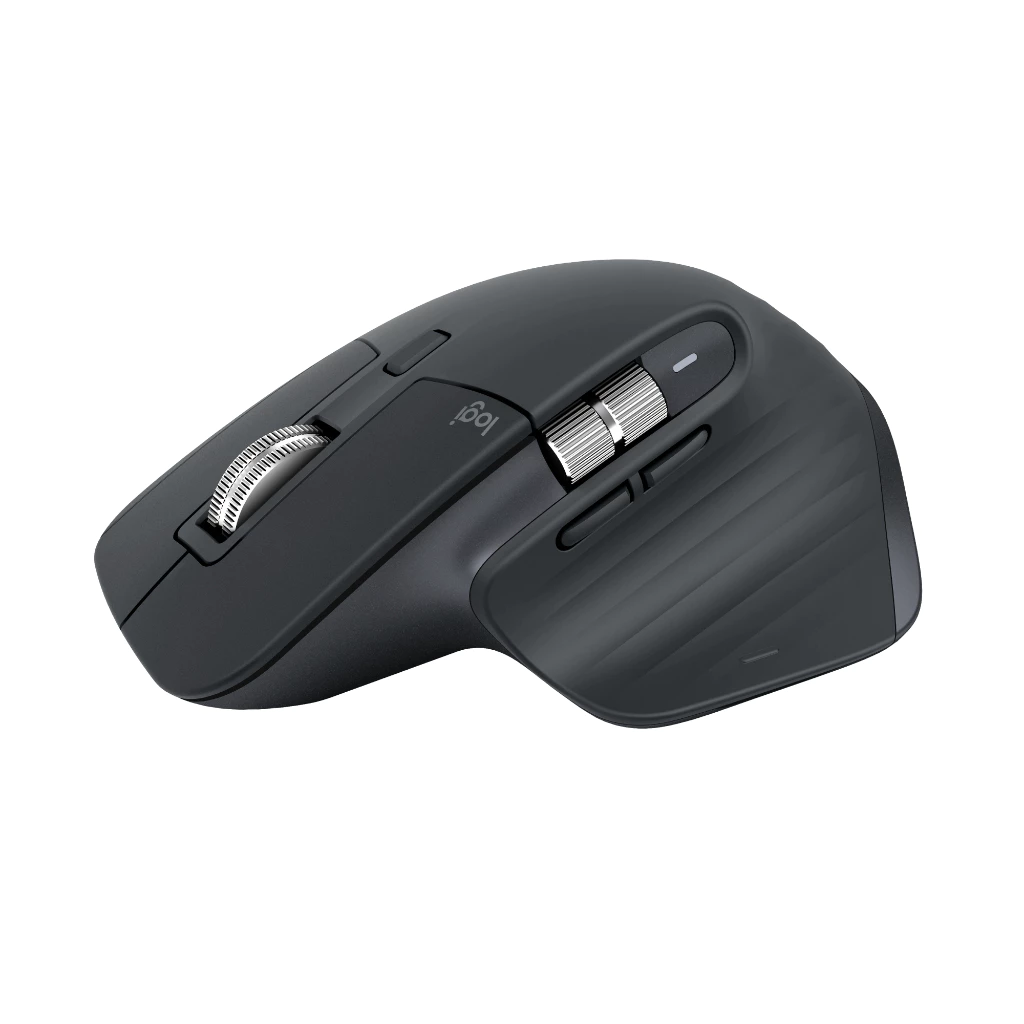
Logitech MX Master 3S
A premium productivity mouse featuring the MagSpeed electromagnetic scroll wheel, multi-device connectivity with Logitech Flow, silent clicks, and ergonomic sculpted design for all-day comfort during intensive work sessions.
RM237.00 · Shopee Malaysia
If the Logitech M650 is the first real upgrade for WFH users, the MX Master 3S is where you start to feel what a true productivity mouse is supposed to be. This is the mouse that turns daily work — scrolling, switching apps, managing documents — into something smoother, faster, and far less tiring.
It’s not designed to look flashy or win gaming tournaments. It’s built for people who actually work at their computers all day.
Ergonomic shape & hand posture
The MX Master 3S has one of the most comfortable shapes you can get in a mainstream mouse. It’s sculpted to let your hand rest naturally, with a raised palm area and a thumb rest that keeps your grip relaxed instead of tense. This reduces wrist bending and finger strain, which is especially important if you’re working long hours.
Compared to flat or small mice, your hand doesn’t have to “hover” or pinch the mouse — it just sits there. That’s why many people who switch to the MX Master line notice less fatigue and fewer aches after a full workday. It earns its reputation as one of the best ergonomic mice for work for a reason.
MagSpeed scroll wheel for Excel & timelines
The MX Master 3S is famous for its MagSpeed scroll wheel, and once you use it, it’s hard to go back. It can spin freely at high speed for flying through long Excel sheets, PDFs, and web pages, then instantly switch to precise, click-by-click scrolling when you need control.
If your job involves spreadsheets, code, documents, or video timelines, this feature alone can save you a surprising amount of time and frustration. You spend less effort scrolling and more time actually working.
Multi-device workflow
One of the biggest reasons WFH users love the MX Master 3S is its ability to connect to multiple devices at once. You can pair it with your desktop, laptop, and even a tablet, then switch between them with a button press. With Logitech Flow, you can even move your cursor across screens as if they were one system.
For anyone who works across a work laptop and a personal PC, or uses a tablet alongside a desktop, this turns the mouse into a central control tool for your entire setup.
Battery & charging
The MX Master 3S uses a rechargeable battery that lasts weeks on a single charge. You don’t need to think about it day-to-day, and when it does run low, a quick USB-C charge gives you hours of use. It’s designed to be a tool you forget about, in a good way.
Best for
The MX Master 3S is perfect for office workers, coders, designers, and spreadsheet warriors, anyone who juggles lots of windows, long documents, or complex workflows. If you want one mouse that can handle almost everything in a WFH setup, this is it.
And for most people, this is the hero mouse of the upgrade path: the point where comfort, speed, and productivity finally come together.
Official Product Link
View full specifications on Logitech’s official website →
Video Review by Cameron Dougherty Tech
Tier 3: Pro X Superlight 2 — The Precision Pro Tool
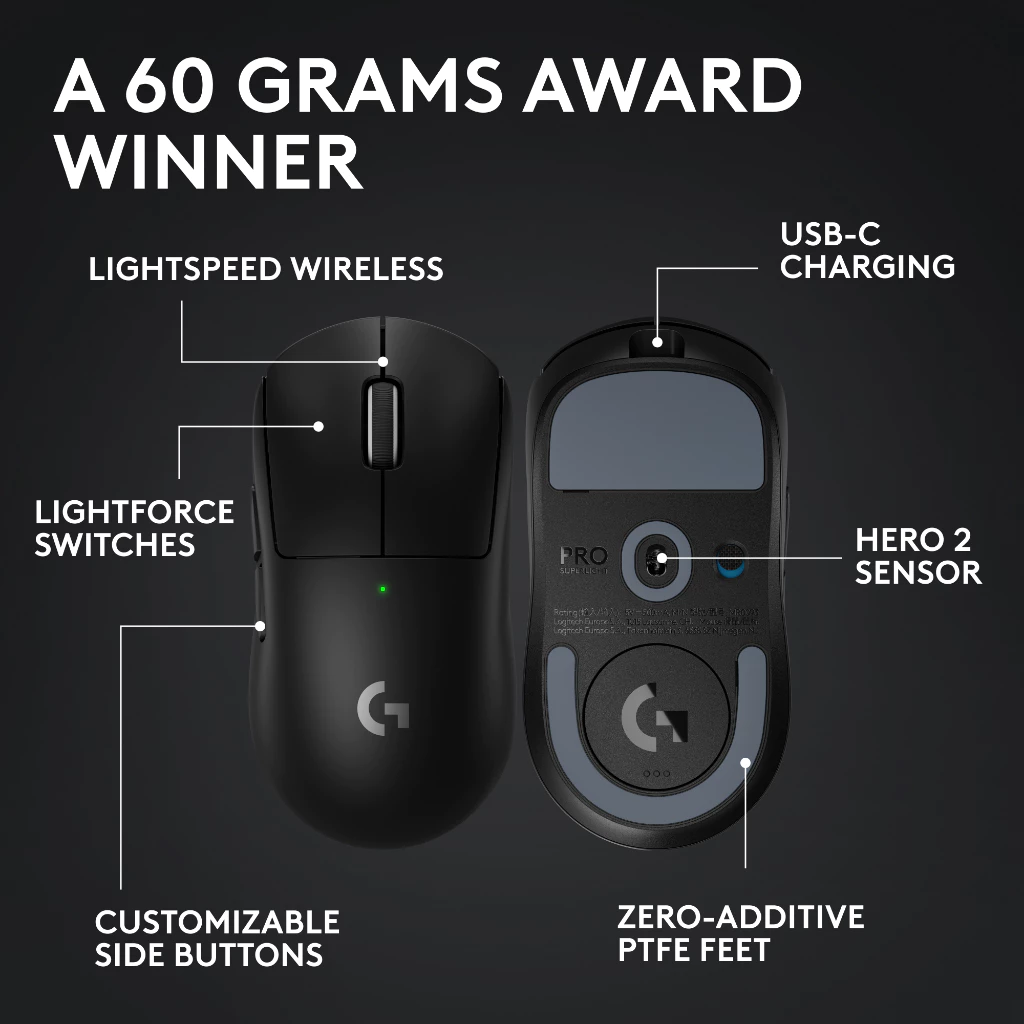
Logitech Pro X Superlight 2
An ultra-lightweight professional wireless mouse weighing under 60g, featuring the HERO 2 sensor for exceptional precision, USB-C fast charging, and fatigue-reducing design optimized for intensive work sessions and detailed tasks.
RM569.05 · Shopee Malaysia
The Pro X Superlight 2 sits at the top of this upgrade path for a very different reason than the MX Master 3S. It doesn’t look ergonomic, and it doesn’t have extra buttons or a sculpted thumb rest. What it offers instead is something just as important for long WFH sessions: extreme lightness and precision.
For many professionals, that combination turns out to be more comfortable than a bulky ergonomic mouse.
Why low weight reduces fatigue
Most traditional ergonomic mice are large and heavy. While their shape supports your hand, your wrist and fingers still have to push and stop that weight every time you move the cursor. Over thousands of movements per day, that effort adds up.
The Superlight 2 is built to be as light as possible, which means there is almost no resistance when you move it. Your hand doesn’t have to fight the mouse — it simply guides it. This reduces strain on your wrist, fingers, and forearm, especially during tasks that involve a lot of small, repeated movements like editing text, navigating interfaces, or working in design tools.
This is why many people describe ultra-light mice as feeling effortless to use.
Cursor control & accuracy
The Superlight 2 uses a high-end sensor that tracks even the tiniest movements accurately. When you move the mouse a few millimeters, the cursor responds instantly and predictably. That precision makes a big difference for work that requires fine control, such as design, coding, or detailed document editing.
Because the mouse is so light, you can make fast movements and quick corrections without overshooting or feeling like you’re dragging something across the desk. The result is a cursor that feels connected to your hand, rather than something you have to wrestle with.
Why some professionals prefer this over ergonomic mice
Not everyone wants a large, sculpted mouse. Some people find that heavy ergonomic designs actually make their hands feel more tired, especially if they prefer a lighter touch and faster movement.
Designers, developers, and power users often choose mice like the Superlight 2 because they value:
- low resistance
- fast response
- precise control
For them, reducing movement effort is just as important as supporting the hand’s shape. Over long sessions, that can mean less fatigue, even without a traditional ergonomic form.
What is the HERO 2 sensor?
HERO 2 is Logitech’s latest high-precision optical sensor used in the Pro X Superlight 2.
In simple terms, it controls:
- how accurately your hand movement becomes cursor movement
- how fast the mouse can react
- how little power it uses while doing it
What makes HERO 2 special:
1) Extreme precision It can track up to 32,000 DPI, but the real benefit isn’t the number, it’s that even tiny movements are picked up cleanly. When you move the mouse a millimeter, the cursor moves exactly that amount. This is what makes the Superlight 2 feel “connected” to your hand.
For WFH users:
- smoother text selection
- more accurate spreadsheet cell targeting
- better control in design and editing tools
2) No jitter or skipping Cheap sensors sometimes “guess” where you moved. HERO 2 doesn’t — it reads raw movement directly from the surface. That means fewer micro-corrections and less hand strain over time.
3) Very power efficient HERO 2 uses much less battery than older sensors, which is why the Superlight 2 can run for weeks even though it’s so light.
What is LIGHTSPEED wireless?
LIGHTSPEED is Logitech’s high-performance wireless system.
This is not normal Bluetooth.
Bluetooth is designed for:
- keyboards
- headphones
- casual devices
LIGHTSPEED is designed for:
- instant response
- zero lag
- stable connection
For WFH, that means:
1) No cursor lag When you move the mouse, the cursor moves immediately. There’s no delay, no “floaty” feeling. This makes a huge difference for:
- precision work
- fast navigation
- reducing frustration
2) Strong, stable connection LIGHTSPEED uses a USB receiver that talks directly to the mouse. It doesn’t drop out when Wi-Fi or other devices are busy, which happens with Bluetooth in crowded home offices.
3) Better battery efficiency Because the signal is optimized, it uses less power per movement than Bluetooth. That’s another reason the Superlight 2 lasts so long on one charge.
Why this matters for WFH users
When you combine:
- HERO 2 (accurate, low-strain tracking)
- LIGHTSPEED (instant, stable wireless)
you get a mouse that feels:
- smoother
- faster
- less tiring
This is why the Superlight 2 doesn’t just feel good for gaming, it feels effortless for long hours of real work, especially if you care about speed, precision, and low fatigue.
Best for
The Pro X Superlight 2 is ideal for designers, developers, and anyone who hates heavy mice. If your work involves a lot of cursor movement, precision, or fast navigation, this mouse can feel dramatically better than bulkier options.
It’s not shaped to be ergonomic, but by being ultra-light and extremely precise, it becomes fatigue-reducing in its own way, making it a powerful choice for serious WFH users.
Official Product Link
View full specifications on Logitech G’s official website →
Ergonomic vs Lightweight: Which Is Better for WFH?
This is one of the most common questions WFH users run into when upgrading their mouse: should you choose an ergonomic shape like the MX Master 3S, or an ultra-light mouse like the Pro X Superlight 2? Both can be comfortable, just in very different ways.
The MX Master 3S is built around static comfort. Its sculpted shape supports your palm, lifts your wrist into a more natural position, and gives your fingers a place to rest. If you spend a lot of time reading, scrolling, or working in spreadsheets, this kind of support reduces the strain of simply holding the mouse. Your hand feels relaxed even when you’re not actively moving it.
The Superlight 2 takes the opposite approach. Instead of supporting your hand, it reduces the effort needed to move it. Because the mouse is extremely light, your wrist and fingers don’t have to push or drag weight across the desk. Every movement feels easy and quick. Over long workdays filled with cursor movement like editing, coding, designing, or navigating complex interfaces, this reduction in resistance can mean less dynamic fatigue.
This is where static comfort vs dynamic fatigue becomes important.
- If your work involves long periods of reading, scrolling, and resting your hand on the mouse, the MX Master 3S usually feels better.
- If your work involves constant movement, fine control, and fast switching between elements on screen, the Superlight 2 often wins.
There’s also a workflow difference. The MX Master 3S is designed for slow, deliberate, multi-tasking workflows — jumping between apps, scrolling through long documents, and managing multiple screens. The Superlight 2 is built for speed and precision, where you want the cursor to go exactly where you intend with minimal effort.
Neither is “better” for everyone. The MX Master 3S excels at long, steady office work, while the Superlight 2 shines in fast, movement-heavy tasks. The best choice depends less on how long you work, and more on how you move your mouse while you work.
How This Fits Into a Complete WFH Setup
A good mouse doesn’t work in isolation, it’s part of a system. The way your mouse feels and performs is directly affected by your desk, keyboard, mousepad, and posture. This is why choosing the right mouse is just as important as choosing the right desk or chair in a WFH environment.
If you’re using a large ergonomic mouse like the MX Master 3S, your desk height and keyboard position matter more than you might expect. Your forearm should be roughly parallel to the desk, with your wrist in a neutral position. If the desk is too high, you end up bending your wrist upward, which cancels out the ergonomic benefits of the mouse. Pairing it with a low-profile keyboard and a proper desk height helps keep your hand relaxed and supported.
With a lightweight mouse like the Pro X Superlight 2, surface quality becomes more important. A good mousepad allows the mouse to glide smoothly with very little resistance, which is what makes its low weight feel so effortless. On a rough desk surface or cheap pad, you lose that advantage and introduce unnecessary friction.
Your keyboard also plays a role. If your keyboard is too wide or angled, it forces your mouse hand to reach outward, which puts stress on your shoulder and wrist. A compact or tenkeyless keyboard keeps the mouse closer to your body, improving posture and reducing strain no matter which mouse you use.
Finally, wrist posture ties everything together. An ergonomic mouse supports the shape of your hand, while a lightweight mouse reduces the effort needed to move it — but both rely on your wrist staying straight and relaxed. A good desk height, the right keyboard layout, and a smooth mousepad help make sure your mouse can do its job without your body fighting against it.
For a deeper dive into how all of this fits together, from desk height to accessories, you can see how we build a full setup in our Ultimate WFH Desk Setup guide, where the mouse is just one piece of a system designed for long, comfortable, productive workdays.
Technical Comparison — WFH Productivity Mice
| Feature | Logitech M650 | MX Master 3S | Pro X Superlight 2 |
|---|---|---|---|
| Price (Malaysia) | ~RM150–RM200 | ~RM350–RM450 | ~RM500–RM600 |
| Mouse Type | Office / Ergonomic | Productivity / Ergonomic | Lightweight Precision |
| Weight | ~101g (AA battery) | ~141g | ~60g |
| Sensor Type | Optical | Darkfield High Precision | HERO 2 |
| Max DPI | 4000 DPI | 8000 DPI | 32,000 DPI |
| Scroll Wheel | Standard | MagSpeed electromagnetic | Standard |
| Click Noise | Silent | Quiet | Clicky |
| Buttons | 5 | 7 (customizable) | 5 |
| Wireless | Bluetooth / Logi Bolt | Bluetooth / Logi Bolt | Lightspeed Wireless |
| Multi-Device | Yes (via Bluetooth) | Yes (3 devices + Flow) | No |
| Battery Type | 1× AA | Built-in rechargeable | Built-in rechargeable |
| Battery Life | Up to 24 months | Up to 70 days | Up to 95 hours |
| Charging | Not required | USB-C | USB-C |
| Surface Compatibility | Mousepad, wood | Works on glass | Mousepad recommended |
| Ergonomic Shape | Yes | Yes (sculpted) | No (low-profile) |
Final Verdict: The Smart WFH Upgrade Path
Choosing the right mouse for WFH isn’t about buying the most expensive model, it’s about matching the tool to how your work and your habits evolve.
For most people, the Logitech M650 is the perfect place to start. It’s the first real step away from cheap, uncomfortable mice. You get quiet clicks, a more ergonomic shape, and smoother tracking, all without spending a fortune. If you’re coming from a RM50–RM100 mouse, the M650 already feels like a huge quality-of-life upgrade for daily office work.
As your workload grows and you start juggling more apps, documents, and screens, the MX Master 3S becomes the natural next step. Its ergonomic design, MagSpeed scroll wheel, and multi-device support turn it into a true productivity tool. This is the mouse that makes spreadsheets easier to navigate, long documents faster to scroll, and multi-tasking less tiring. For many WFH users, this is the mouse they end up using for years.
Then there’s the Pro X Superlight 2, not a replacement for the MX Master 3S, but an upgrade for a different kind of user. If your work involves constant cursor movement, precision, or speed — design, development, editing, or heavy UI work, the Superlight’s ultra-light weight and accurate sensor can reduce fatigue in a way even the best ergonomic shapes can’t. It’s where performance and comfort meet for people who value effortless movement.
The smart path is simple: start with comfort, grow into productivity, and graduate into precision if your work demands it.
A good mouse isn’t a luxury, it’s one of the highest-ROI upgrades you can make for any work-from-home setup.
Personal Experience: Why I Use Two Different Mice for WFH
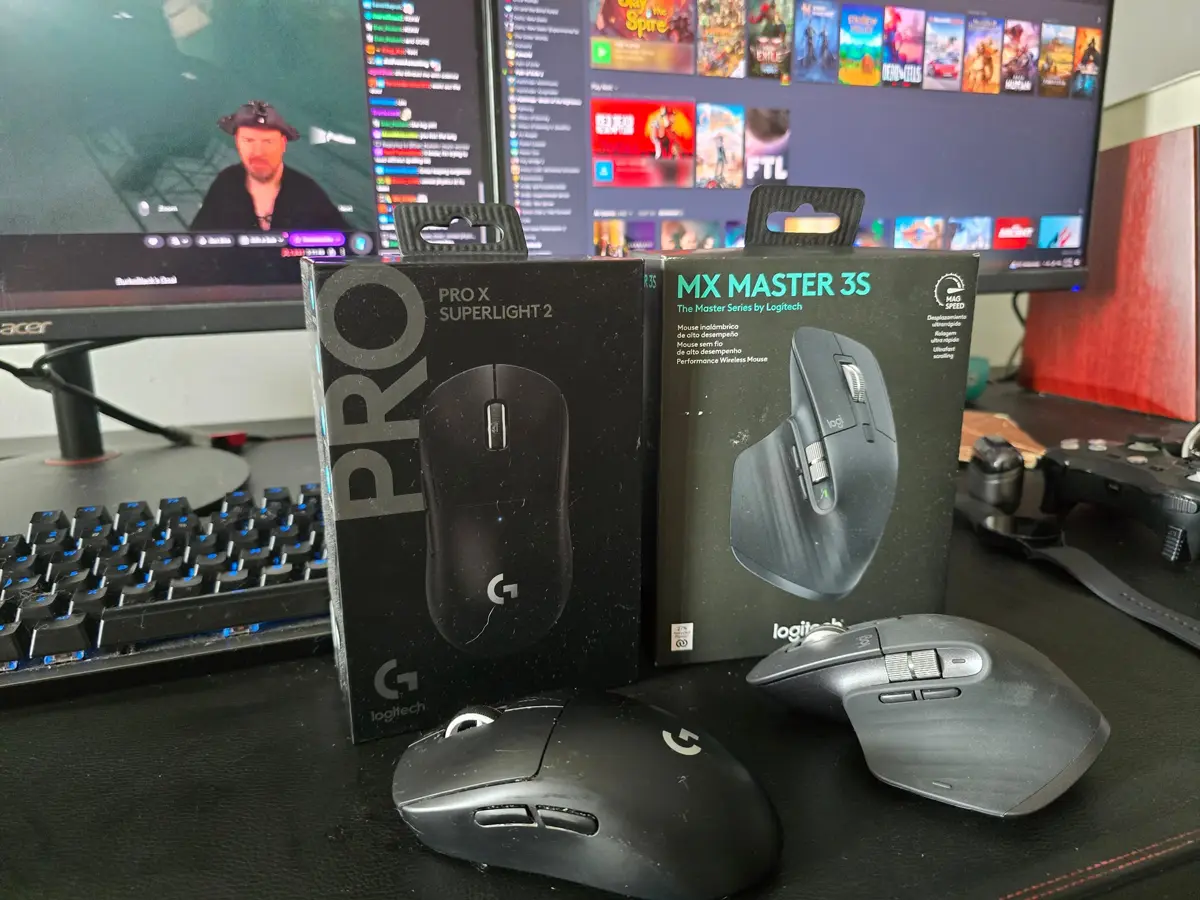
I actually use both the Logitech Pro X Superlight 2 and the MX Master 3S in my daily WFH setup, just for different jobs.
On my desktop PC, I use the Pro X Superlight 2. The biggest reason is simple: weight. The mouse is so light that even after long hours of moving the cursor around, my wrist and fingers feel noticeably less tired. It also fits my palm just right, which makes small, precise movements feel natural rather than forced. For work that involves a lot of cursor movement like writing, editing, design, or even just navigating complex UIs, the Superlight feels effortless. I also play games on this setup, which is precisely what this mouse was designed for. The combination of ultra-low weight, high precision, and instant response makes it exceptional for both gaming and productivity work.
On my laptop and tablet setup, I switch to the MX Master 3S. This is where its productivity features really shine. The MagSpeed scroll wheel makes scrolling through long documents, spreadsheets, and timelines much faster, and the extra buttons for switching tabs, desktops, and apps save a lot of tiny but constant movements. When you’re juggling multiple windows, browser tabs, and tools, those shortcuts add up quickly.
What surprised me most is that these two mice don’t compete, they complement each other. The Superlight 2 gives me speed, precision, and low fatigue, while the MX Master 3S gives me comfort and workflow efficiency. Together, they cover almost every kind of WFH task I do.
That’s also why in this guide, I don’t treat this as “which mouse is better,” but rather which mouse fits your work style, because in real WFH use, both types have a place.
Frequently Asked Questions — WFH Mice
What is the best mouse for working from home?
The Logitech MX Master 3S is the best overall mouse for working from home because it combines an ergonomic shape, ultra-fast scrolling, customizable buttons, and multi-device support, making it ideal for long workdays and multitasking.
Is an ergonomic mouse better for WFH?
An ergonomic mouse is better for long, desk-based WFH sessions because it keeps your wrist and hand in a more natural posture, reducing strain. Mice like the MX Master 3S are designed to support the palm and reduce tension during hours of clicking, scrolling, and dragging.
Is a lightweight mouse better than an ergonomic mouse?
A lightweight mouse reduces arm and hand fatigue by requiring less force to move. Mice like the Pro X Superlight 2 are preferred by users who do a lot of precision work, coding, or design, even though they are not shaped like traditional ergonomic mice.
Which is better: MX Master 3S or Pro X Superlight 2?
The MX Master 3S is better for productivity, spreadsheets, browsing, and multitasking, while the Pro X Superlight 2 is better for speed, accuracy, and precision workflows such as design, development, or detailed editing.
Is the Logitech M650 good for work?
Yes. The Logitech M650 is one of the best budget office mice because it has silent clicks, a comfortable shape, and long battery life, making it ideal for meetings, laptop users, and shared workspaces.
Why do WFH users outgrow cheap mice?
Cheap mice usually have stiff clicks, poor sensors, and uncomfortable shapes. As WFH users spend more hours at their desk, these issues cause finger fatigue, wrist pain, and reduced productivity, leading them to upgrade to better-designed mice.
What is a MagSpeed scroll wheel?
MagSpeed is Logitech’s high-speed, magnetic scroll wheel used in the MX Master 3S. It allows users to scroll thousands of lines per second or switch to precise, click-by-click scrolling for spreadsheets and timelines.
What does LIGHTSPEED mean on Logitech mice?
LIGHTSPEED is Logitech’s low-latency wireless technology. It delivers a connection that is as fast and stable as a wired mouse, which is why it’s used on high-end mice like the Pro X Superlight 2.
What is the HERO 2 sensor?
The HERO 2 sensor is Logitech’s latest high-precision optical sensor. It provides extremely accurate cursor tracking while using less power, allowing wireless mice to be both more accurate and longer-lasting.
Can a good mouse really improve productivity?
Yes. A good mouse improves scrolling speed, cursor accuracy, and comfort, which reduces fatigue and saves time. For people who work from home every day, a mouse upgrade often delivers more real-world benefit than upgrading a CPU or monitor.
What is the best mouse upgrade path for WFH users?
Most WFH users should start with the Logitech M650, upgrade to the MX Master 3S for productivity and comfort, and move to the Pro X Superlight 2 if they want maximum speed and precision.